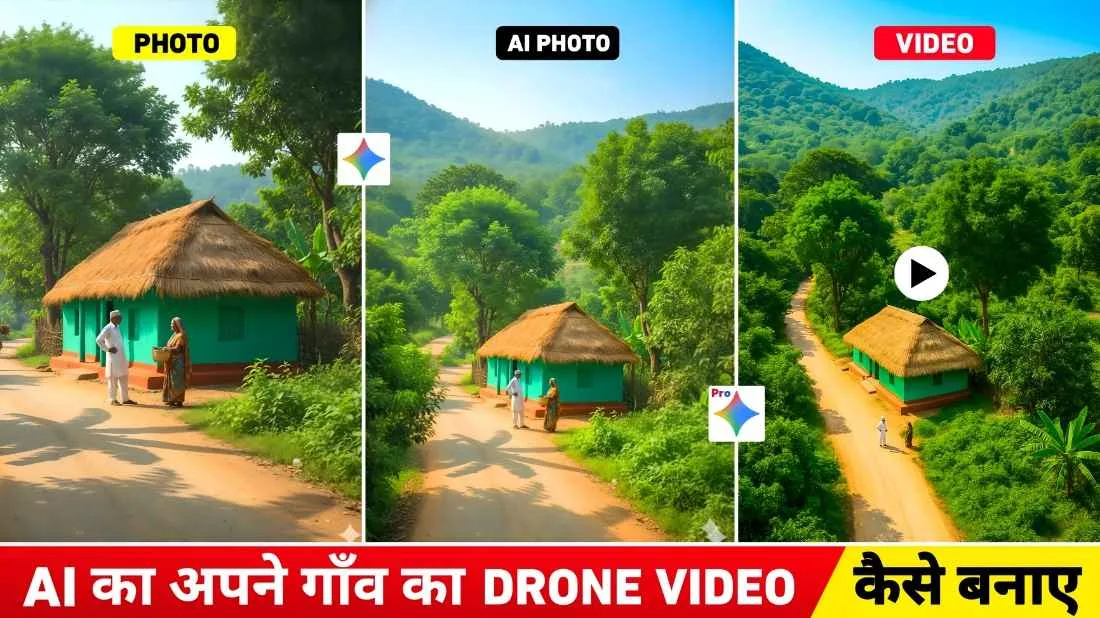
Social media has been buzzing with a new AI-powered trend that turns regular photos of your village, home, or scenic locations into cinematic drone-style videos. This viral trend is taking over Instagram and YouTube Shorts, where creators are showing off how they transform static images into dynamic drone videos—all without ever needing an actual drone! If you’re wondering how to jump on this bandwagon and create your own AI-powered drone videos, you’re in the right place. In this post, we’ll walk you through how to do it using two popular AI tools: Google Gemini and Flow AI.
What is the AI Drone Video Generator Trend?
The AI drone video generator trend is all about transforming simple, still photos into cinematic, aerial-style videos. Whether it’s a photo of your village, fields, or even your house, the goal is to give it that smooth, cinematic fly-in drone shot effect. This trend has sparked a wave of creativity, especially among content creators, travel vloggers, and photo editors.
The cool part? You don’t need a drone to create these stunning videos. With the right AI tools, you can turn any normal photo into a professional-looking drone shot and animate it into a moving video.
Tools You Need: Google Gemini and Flow AI
Two AI tools are at the forefront of this trend: Google Gemini and Flow AI. These tools are being widely used to generate and animate the drone-style videos. Here’s how they work:
- Google Gemini: This AI tool is used to transform a static image into a high-quality, realistic aerial shot.
- Flow AI: Once you’ve got your aerial shot from Gemini, Flow AI helps you animate the photo into a smooth, cinematic drone video.
Let’s break down how to use each tool to create these viral AI drone videos.
Step 1: Create the Aerial Shot with Google Gemini
The first step in creating your AI-powered drone video is transforming a regular photo into a drone-style aerial shot. Google Gemini is perfect for this task. Here’s how to do it:
Google Gemini Prompt
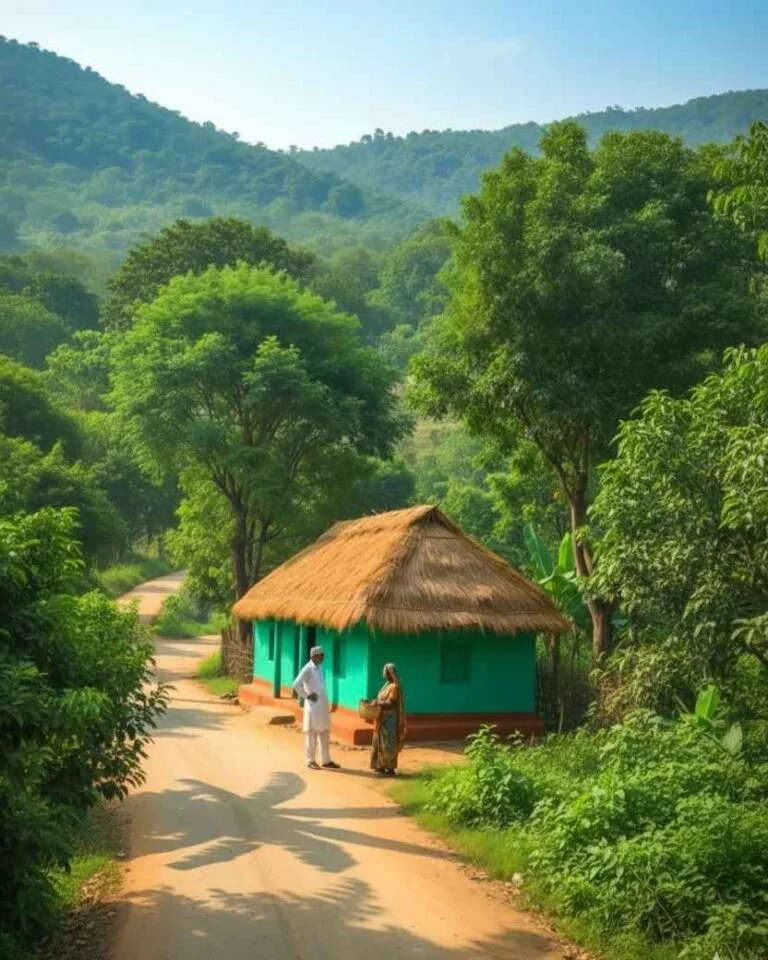
Convert this image into a realistic aerial drone shot without changing original photo, slightly expanded with natural surroundings that match the scene. Keep lighting, colors, and textures consistent -no unrealistic or fantasy elements.
How to Use Google Gemini to Create a Drone-Style Image:
- Open Google Gemini: Visit the Google Gemini website or open the app.
- Select “Create Image”: Once on the platform, click on the “Create Image” option.
- Upload Your Photo: Click the plus button to upload a photo from your gallery or file storage.
- Enter the AI Prompt: Paste the following prompt into the message box:
- “Convert this image into a realistic aerial drone shot without changing the original photo. Slightly expand the natural surroundings to match the scene. Keep the lighting, colors, and textures consistent. No unrealistic or fantasy elements.”
- Submit the Prompt: Click “Send” and wait for the AI to process your image.
- Download Your Drone Shot: Once the image is ready, click on it to view and download your new drone-style shot.
That’s it! Now you have a stunning aerial image created from your regular photo.
Step 2: Turn Your Drone Shot into a Video with Flow AI
Once you’ve created your drone shot using Google Gemini, it’s time to bring it to life by turning it into a smooth, cinematic drone video using Flow AI.
How to Animate Your Drone Image into a Video Using Flow AI:
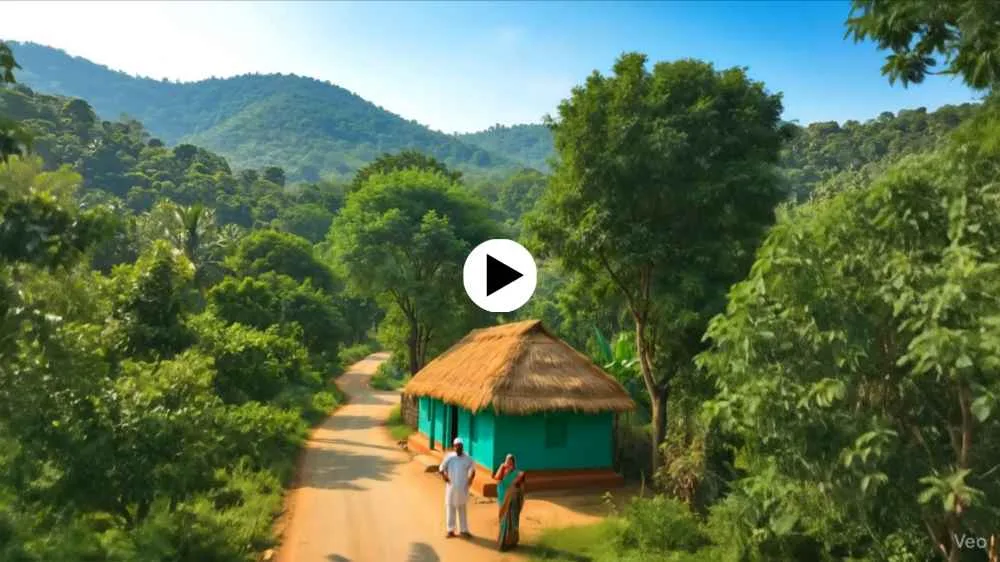
Animate this image as a smooth, realistic drone shoot
- Visit Flow AI: Search for “Flow AI” on your browser and click on the official website.
- Log in to Your Account: Log in using your Google account.
- Create a New Project: Click on the “New Project” button and select “Frames to Video.”
- Upload Your Image: Click the plus button to upload the drone image you created in Google Gemini.
- Enter the Motion Prompt: Paste the following prompt into the message box:
- “Animate this image as a smooth, realistic drone shot with cinematic fly-in motion, slow, and steady, in 4K quality.”
- Generate the Video: Click “Send” and wait as the AI generates a short cinematic video from your image.
- Download Your Video: Once the video is ready, click the download icon to save the video to your device.
Step 3: Edit and Enhance Your Video
While Flow AI does a great job at animating the image, you may want to do some additional editing to enhance the final result. You can use video editing apps to:
- Enhance the image quality to HD.
- Color grade the video for a more polished look.
- Add background music or sound effects for extra drama.
Pro Tip: Boost Your Content Creation
Once you’ve created and edited your AI drone video, you’re ready to share it on social media! This trend is currently blowing up on Instagram and YouTube Shorts, so there’s a good chance your video could go viral. Whether you’re showcasing your village, a scenic landscape, or your home, this trend is a fun and creative way to engage your audience.
Why the AI Drone Video Generator Trend is So Popular
This viral trend is not just about editing; it’s about storytelling. By transforming a simple photo into a cinematic video, creators can add an emotional touch to their content. Whether it’s nostalgia for a childhood home or showcasing the beauty of nature, these AI-generated drone videos offer a new way to engage viewers with captivating visuals.
Furthermore, with tools like Google Gemini and Flow AI, anyone can create professional-looking content without expensive gear. This has democratized drone-style videography, making it accessible to anyone with a smartphone and an internet connection.
Final Thoughts
The AI drone video generator trend has certainly taken social media by storm. It’s a fun and creative way to turn ordinary photos into extraordinary cinematic experiences. With tools like Google Gemini and Flow AI, you can easily create your own drone-style videos and share them with the world. So, what are you waiting for? Grab a photo of your village, your house, or any scenic view, and start creating your own viral video today!
